
How to install WordPress on windows computers?
Aslam Hasib
- Reader Disclosure Reader Disclosure: Some of the posts on our site may contain affiliate links. Clicking may earn us a commission at no extra cost to you. Thank you for your support! Read our Disclosure
If you’re looking to install WordPress on Windows, you’re in the right place. To install WordPress on a Windows computer, you need to either install the XAMPP software for windows or the Wamp Server software.
Both of these software allows you to install WordPress locally on a Windows computer. Run WordPress locally for Windows for faster development and testing.
Today we are going to take a look into a list of steps that you need to follow to install WordPress on your Windows machine.
Why Install WordPress Locally on Windows?
Installing WordPress locally on a Windows computer provides numerous benefits that cater to a variety of users, from beginners exploring the platform to experienced developers managing complex projects.
WordPress on Windows is ideal for developers who want to test new features without affecting a live site. Here’s a more comprehensive look at why a local WordPress installation is invaluable:
1. Experiment Without Risk
A local installation acts as a safe testing ground where you can experiment freely without any consequences.
- Beginners: Perfect for learning the ropes of WordPress, like setting up pages, posts, and widgets.
- Advanced Users: Test new themes, plugins, or custom code in an environment where errors won’t affect visitors, sales, or SEO rankings.
2. Speed Up Development
With WordPress running locally, you eliminate delays caused by internet speed or hosting server limitations. This leads to faster loading times and seamless development workflows.
- Front-End Developers: Quickly style and design themes using tools like browser inspectors.
- Back-End Developers: Write and debug PHP or JavaScript code directly in a responsive environment.
3. Work Offline
Anytime, Anywhere One of the standout advantages of a local setup is the ability to work offline. You can run WordPress on Windows offline for uninterrupted productivity and site development.
- Unreliable Internet? No Problem: Continue building or editing your site even if your internet connection drops.
- Remote Locations: Whether you’re traveling or in a remote area, you can maintain productivity without the need for hosting.
4. Perfect for Learning and Practice
If you’re just starting with WordPress, a local setup allows you to:
- Learn how WordPress themes, plugins, and settings work.
- Experiment with customizations without fear of breaking a live site.
5. Develop Cost-Effectively
Building WordPress locally saves you money during the development phase:
- No Hosting Fees: You don’t need to purchase hosting or a domain until your site is ready for the public.
- Experiment Freely: Install as many themes, plugins, or extensions as you want without worrying about storage limits or subscription costs.
6. Enhanced Debugging
Debugging is easier with WordPress Windows install. Test PHP versions and updates safely. Capabilities Debugging locally is far more efficient than troubleshooting on a live site:
- Enable debugging tools and error logs in real-time.
- Replicate specific issues without impacting users.
- Test different PHP versions, MySQL configurations, or WordPress updates safely.
7. Seamless Site Migration
When your local WordPress site is complete, migrating it to a live server is straightforward. Use plugins like Duplicator or All-in-One WP Migration for easy transfers. Ensure everything is fully functional before launching to avoid embarrassing bugs or misconfiguration.
Recommended Blogs for You:
👉 What’s New in WordPress 6.5 (Features with Screenshots)
👉 How to Install WordPress Using XAMPP: A Step-by-Step Guide
👉 What is Headless WordPress?: A Comprehensive Exploration
👉 How to Edit Header in WordPress: A Step-by-Step Guide
👉 How to Become a WordPress Developer: Essential Steps and Tips for Success in 2024
Steps to Install WordPress on Windows Computers
1. Download and install the XAMPP software for windows.

2. Install all the components from XAMPP software, including MySQL and PHPMyAdmin.
3. You need to run the modules Apache and MySQL.
4. You need to test that your local server is working by visiting “http://localhost/“ on any web browser.
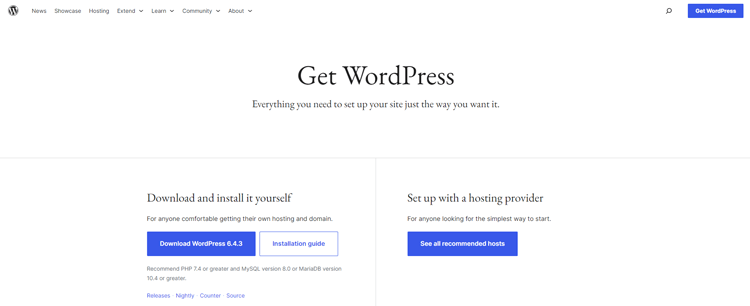
5. You need to download WordPress from www.wordpress.org
6. You need to unzip the WordPress package and add the WordPress files to the htdocs subfolder by navigating to within the XAMPP folder in your windows computer.
7. You need to create a new folder with your desired name within htdocs where you want to install WordPress and then move the WordPress files to that folder.
8. You need to create a new MySQL database with a new database username and a new database password by launching PHPMyAdmin from your XAMPP control panel.
9. After you have created the database, you need to configure the wp-config.php file from within the folder where you have kept your WordPress files.
10. You need to update the wp-config.php file with your new database information.
11. After you have completed the steps from 1 to 10 you then need to visit the link “http://localhost/foldername” where folder name represents the name of the folder within your htdocs folder where you have kept your WordPress files.
12. You will be guided to an installation page after you visit the link “http://localhost/foldername” from a web browser on your Windows computer.
13. You will need to choose your desired language for the WordPress website and other details like username and password and then you need to click to complete your WordPress installation on your windows computer.
After You Install WordPress on Your Windows Machine. What’s Next?
After you have installed WordPress on your Windows machine, you will be able to log in to the WordPress dashboard by following this link “http://localhost/foldername/wp-admin” with the username and password you have chosen in step 13.
Customize your site with themes and plugins. With WordPress installation on Windows site as you desire.
After you have logged in to your WordPress dashboard, you will be able to customize, configure, and build your WordPress website according to the way you desire.
Watch the video about How to install WordPress on windows computers?
FAQs About Installing WordPress on Windows
Can I move my local WordPress site to a live server?
Yes, you can migrate your local WordPress site to a live server using plugins like All-in-One WP Migration or Duplicator.
Can I install plugins and themes in a local WordPress installation?
Absolutely! You can install and test plugins and themes locally just as you would on a live site.
Can I use WAMP instead of XAMPP?
Yes, WAMP is another local server stack that works well for Windows. The installation process is similar to XAMPP.
Conclusion
Setting up WordPress locally on your Windows machine is a powerful way to build and test websites.
By following this guide on how to install WordPress on Windows, you can create a safe environment for development.
Tools like XAMPP or WAMP serve as a reliable WordPress installer for Windows, making the process straightforward.
Whether you’re a beginner or an experienced developer, learning to install WordPress in Windows opens up endless possibilities for experimentation.
Start your WordPress journey today and unlock the potential of local development.







