
The Options Tab is where you configure the core functionality of your feedback widget. This guide explains every setting in detail.
Accessing Options Tab #
- Go to WordPress Admin → Was This Helpful
- You'll be on the Option tab by default
- Look for “Save Changes” button at the top
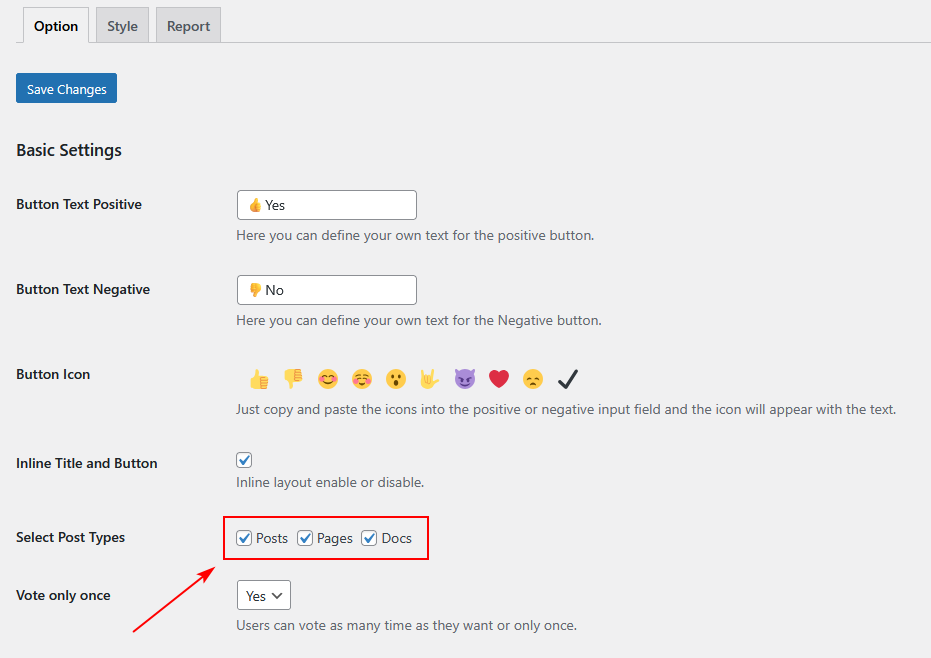
Basic Settings Section #
Button Text Positive #
Default: 👍Yes
What it does: This is the text shown on the positive feedback button.
Examples:
👍 Helpful✅ Yes, this helped😊 GoodUseful
Tips:
- Keep it short (1-3 words)
- Use emojis for visual appeal
- Make it clear and positive
Button Text Negative #
Default: 👎No
What it does: This is the text shown on the negative feedback button.
Examples:
👎 Not Helpful❌ No, needs work😞 Needs ImprovementNot Useful
Tips:
- Keep it short and clear
- Be constructive, not harsh
- Use emojis that match your tone
Button Icon #
Default: Shows emoji picker with options like 👍 👎 😊 😐 😢 ✌️ 😈 ❤️ 😍 ✅
What it does: Allows you to add custom emojis to your buttons.
How to use:
- Copy an emoji from the picker or any source
- Paste it into the Button Text Positive or Button Text Negative fields
- The emoji will appear on your button
Pro Tip: You can use ANY emoji from your device:
- Windows:
Win + .(period) - Mac:
Cmd + Ctrl + Space - Or copy from Emojipedia
Inline Title and Button #
Default: Unchecked (disabled)
What it does: When enabled, displays the title and buttons on the same line instead of stacked vertically.
When to use:
- If you have limited vertical space
- For a more compact design
- When your question text is very short
Visual difference:
Disabled (default):
Was this helpful?
[Yes]  [No]

Enabled:
Was this helpful?  [Yes]  [No]
Select Post Types #
Default: Post (checked)
Available options:
- Post (Blog posts)
- Page (Static pages)
- Attachment (Media files)
What it does: Controls where the feedback widget appears on your site.
Common configurations:
- Blog Only: Check only
post- Use when you want feedback on articles only
- Blog + Pages: Check
postandpage- Use for blogs and important pages (About, Services, etc.)
- Everything: Check all options
- Use if you want comprehensive feedback across your site
Note: Custom post types (like WooCommerce Products) may appear here if installed.
Vote Only Once #
Default: Yes (dropdown)
Options:
- Yes – Users can vote only once per post (recommended)
- No – Users can vote multiple times
What it does: Controls whether visitors can submit multiple votes for the same post.
How it works:
- Uses IP-based tracking to identify unique visitors
- Stores vote history in your WordPress database
- Shows “Already Voted” message on second attempt
When to choose “Yes” (Recommended):
- Accurate feedback data
- Prevent vote manipulation
- Standard feedback practice
When to choose “No”:
- Testing purposes
- If users legitimately need to update their feedback
- Internal sites where trust is not an issue
Message Settings Section #
Your Question #
Default: Was this helpful?
What it does: The main question shown to visitors above the feedback buttons.
Best practices:
- Keep it short and clear
- Use familiar phrasing
- Match your site's tone
Examples for different use cases:
Blog/Articles:
- “Did you find this article helpful?”
- “Was this post useful?”
- “Did this answer your question?”
Documentation/Help:
- “Did this guide help you?”
- “Was this solution helpful?”
- “Could you solve your problem?”
E-commerce/Products:
- “Was this product description helpful?”
- “Did this help you decide?”
- “Is this information clear?”
Tutorials:
- “Was this tutorial easy to follow?”
- “Did you learn something new?”
- “Was this explanation clear?”
Feedback Message #
Default: Thank you for your feedback
What it does: Message shown immediately after a user clicks Yes or No, before they can add comments.
Examples:
- “Thanks! Your feedback helps us improve.”
- “Feedback received! Want to tell us more?”
- “Thank you! We appreciate your input.”
- “Got it! Care to share more details?”
Pro Tip: Make it warm and appreciative. This encourages users to leave additional comments.
Positive Response #
Default: Good job! Please give your positive feedback
What it does: Additional prompt shown when user clicks the Positive button, encouraging them to leave a comment.
Examples:
- “We're glad this helped! What did you like most?”
- “Awesome! Want to tell us what worked well?”
- “Great! Any specific part you found especially useful?”
- “Thanks! What made this helpful for you?”
Note: This appears AFTER the feedback message if the user clicked the positive button.
Negative Response #
Default: How could we improve this post? Please Help us.
What it does: Additional prompt shown when user clicks the Negative button, asking for improvement suggestions.
Examples:
- “We're sorry this didn't help. How can we improve it?”
- “Thanks for letting us know. What was unclear or missing?”
- “We want to do better! What would have been more helpful?”
- “Help us improve – what didn't work for you?”
Best practices:
- Be humble and open to criticism
- Ask specific questions
- Show you genuinely want to improve
- Keep it constructive, not defensive
Already Voted? #
Default: You have already given a feedback for this post.
What it does: Message shown to users who try to vote again on the same post (when “Vote Only Once” is set to “Yes”).
Examples:
- “You've already shared feedback on this post. Thank you!”
- “We've already received your feedback for this article.”
- “Thank you! You've already voted on this content.”
- “Your feedback for this post was already recorded.”
Note: This only appears if “Vote Only Once” is enabled.
Saving Your Changes #
Important: After making any changes:
- Scroll to the top or bottom of the page
- Click the “Save Changes” button
- Wait for the success message
- Visit your site to see the changes live
Testing Your Settings #
After saving, always test on the front-end:
- Open a post/page where feedback should appear (in incognito/private mode)
- Verify the button text shows correctly
- Click the positive button – check the message
- Refresh and click negative button – check that message
- Try voting again – verify “Already Voted” message appears
Advanced Tips #
Using HTML in Messages #
You can use basic HTML in message fields:
Thank you! <strong>Your feedback matters.</strong>
Common Questions #
Q: Can I remove the emoji icons? A: Yes, just delete the emoji from the button text fields.
Q: Can I have different questions on different posts? A: Not directly. You'd need to set it globally, but you can use custom code to override per post.
Q: Does “Vote Only Once” work if users clear cookies? A: Yes, it uses IP tracking, not cookies, so clearing cookies won't allow re-voting.
Q: Can I add images to button text? A: No, only text and emojis are supported in buttons.
Related Guides #
- Style Tab Customization – Change colors, sizes, spacing
- Report Tab Guide – View and analyze feedback
- Custom Post Types – Enable on WooCommerce, etc.
Need help? Contact support through our support channel: Contact us


 OFF every WordPress plugin!