
Learn how to enable and manage feedback on WooCommerce products, portfolios, documentation, and any custom post type in WordPress.
What Are Custom Post Types? #
WordPress has default post types:
- Posts: Blog articles
- Pages: Static pages
- Attachments: Media files
Custom Post Types are additional content types created by plugins or themes:
- Products (WooCommerce)
- Portfolio Items (Portfolio plugins)
- Documentation (Knowledge base plugins)
- Events (Event plugins)
- Testimonials
- Team Members
- And many more…
Was This Helpful works with ALL custom post types!
Enabling Feedback on Custom Post Types #
Step-by-Step Guide #
Step 1: Install Plugin That Creates Custom Post Type #
First, ensure you have a plugin that creates the custom post type you want.
Examples:
- WooCommerce: Creates “Products” post type
- The Events Calendar: Creates “Events” post type
- Easy Digital Downloads: Creates “Downloads” post type
Step 2: Access Plugin Settings #
- Go to WordPress Admin → Was This Helpful
- You're on the Option Tab by default
- Scroll to Select Post Types section
Step 3: Find Your Custom Post Type #
You'll see checkboxes for:
- ☑️ post (default WordPress posts)
- ☐ page (default WordPress pages)
- ☐ attachment (media)
- ☐ product (if WooCommerce installed)
- ☐ portfolio (if portfolio plugin installed)
- ☐ your custom post type
Step 4: Enable Feedback #
- Check the box next to your custom post type
- Click Save Changes button
- Visit a post of that type to verify
WooCommerce Products Setup #
Complete WooCommerce Integration #
Step 1: Ensure WooCommerce is Active
- Go to Plugins in WordPress admin
- Verify WooCommerce is activated
Step 2: Enable Product Feedback
- Go to Was This Helpful → Option Tab
- Find Select Post Types
- Check ☑️ product
- Save Changes
Step 3: Customize for Products
Change your question to be product-specific:
Your Question: "Was this product description helpful?"
Positive Response: "Great! What helped you decide?"
Negative Response: "What information was missing?"
Step 4: Test on Product Page
- Visit any product on your store
- Scroll to product description area
- Verify feedback widget appears
WooCommerce-Specific Tips #
Best practices:
- Place feedback after product description
- Use product-focused language
- Ask about information clarity, not product quality
- Analyze feedback to improve descriptions
Question examples:
- “Did this description answer your questions?”
- “Was this product information helpful?”
- “Do you have everything you need to decide?”
Documentation/Knowledge Base #
Setting Up Feedback on Help Articles #
Many sites use plugins for documentation:
- Heroic KB (Knowledge Base)
- BetterDocs
- KnowAll
- Echo Knowledge Base
These create custom post types like:
docskb-articlesdocumentation
Setup:
- Enable the post type:
- Go to Was This Helpful → Option Tab
- Check the documentation post type
- Save changes
- Customize messages:
Your Question: "Did this article solve your problem?"
Positive Response: "Awesome! Glad we could help."
Negative Response: "Sorry about that. What was unclear?"
- Use feedback to:
- Identify confusing articles
- Find missing topics
- Improve search results
- Update outdated info
Portfolio Items #
Enable Feedback on Portfolio #
Common portfolio plugins:
- Essential Grid
- Jetpack Portfolio
- Portfolio Post Type
Post type names (varies by plugin):
portfoliojetpack-portfolioportfolio_item
Setup:
- Check the portfolio post type in settings
- Customize questions:
Your Question: "Was this case study helpful?"
Positive Response: "Thanks! What inspired you most?"
Negative Response: "What would you like to see more of?"
Use cases:
- Gauge project presentation quality
- Learn what resonates with visitors
- Identify most engaging work
- Improve future case studies
Events #
Event Plugin Integration #
Popular event plugins:
- The Events Calendar
- Events Manager
- Event Organiser
Post type: Usually tribe_events or event
Setup & Use:
Your Question: "Was this event information helpful?"
Positive Response: "Great! See you there?"
Negative Response: "What details were you looking for?"
Benefits:
- Improve event descriptions
- Identify missing information
- Understand attendee needs
- Refine future event pages
Finding Custom Post Type Names #
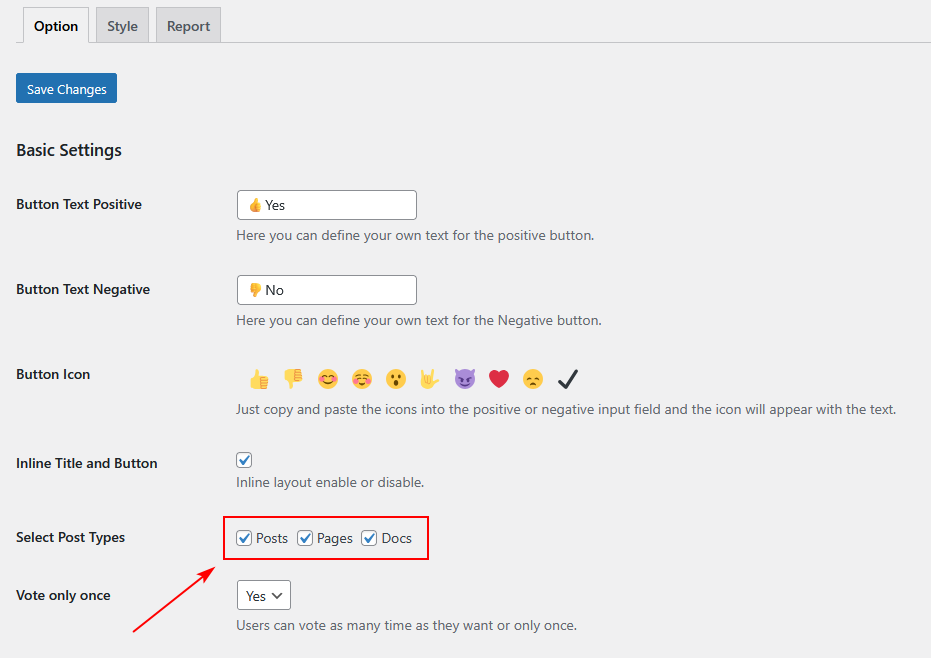
Method 1: Check Select Post Types List #
The easiest way:
- Go to Was This Helpful → Option Tab
- Look at Select Post Types section
- All registered post types appear there
Method 2: Check Plugin Documentation #
Most plugins document their post type names:
- WooCommerce:
product - Events Calendar:
tribe_events - Easy Digital Downloads:
download
Method 3: Using Code (Advanced) #
Add this to functions.php temporarily:
function show_custom_post_types() {
    $post_types = get_post_types(['public' => true], 'names');
    echo '<pre>';
    print_r($post_types);
    echo '</pre>';
}
add_action('admin_notices', 'show_custom_post_types');
This displays all post types in admin area.
Analyzing Custom Post Type Feedback #
Separate Analysis by Type #
In Report Tab:
While the plugin shows all feedback together, you can:
- Identify by title: Post/page/product names are usually distinct
- Filter by date: If you enabled a type on a specific date
- Sort by title: Group similar content types together
Pro tip: Keep a spreadsheet:
| Title | Type | Yes % | No % | Notes |
|-------|------|-------|------|-------|
| Blue Shirt | Product | 85% | 15% | Good |
| Install Guide | Docs | 60% | 40% | Needs update |
Common Patterns by Type #
Products:
- High negative = Missing specs, unclear features
- High positive = Great descriptions, good images
Documentation:
- High negative = Confusing steps, missing screenshots
- High positive = Clear, well-structured
Portfolio:
- High negative = Not enough detail, no process shown
- High positive = Great storytelling, clear results
Events:
- High negative = Missing venue details, unclear time
- High positive = Complete info, easy to understand
Best Practices by Post Type #
WooCommerce Products #
✅ Do:
- Ask about description clarity
- Request missing information feedback
- Keep questions product-focused
❌ Don't:
- Ask about product quality (use reviews for that)
- Mix with actual customer reviews
- Use negative language
Documentation #
✅ Do:
- Ask if problem was solved
- Request specific improvement areas
- Update based on feedback quickly
❌ Don't:
- Ignore negative feedback
- Keep outdated info
- Use generic questions
Portfolio #
✅ Do:
- Ask what was inspiring/interesting
- Request feedback on presentation
- Learn what visitors want to see
❌ Don't:
- Take criticism personally
- Ignore patterns in feedback
- Show on every portfolio item (can be overwhelming)
Troubleshooting Custom Post Types #
Issue: Custom Post Type Not Appearing #
Solutions:
- Ensure plugin is active:
- Check Plugins page
- Plugin creating the type must be active
- Reactivate Was This Helpful:
- Deactivate the plugin
- Reactivate it
- Check again
- Post type must be public:
- Some custom types are not public
- These won't appear in the list
- Flush rewrite rules:
- Go to Settings → Permalinks
- Click Save Changes (don't change anything)
- This refreshes WordPress's knowledge of post types
Issue: Feedback Showing in Wrong Place #
Solution: This depends on the custom post type's template. Contact support if positioning is problematic.
Advanced: Multiple Post Types Strategy #
Scenario 1: E-commerce + Blog #
WooCommerce store with blog:
Enable on:
- Post (blog)
- Product (store)
Use different question tones:
- Blog: “Was this article helpful?”
- Products: “Was this description helpful?”
Scenario 2: Full Content Site #
Site with multiple content types:
Enable on:
- Post (articles)
- Page (services/about)
- Portfolio (work samples)
- Docs (help center)
Use generic question: “Was this helpful?”
Scenario 3: Documentation Only #
Knowledge base/help site:
Enable on:
- Docs (or whatever your KB uses)
Disable on:
- Post
- Page
Use specific question: “Did this solve your problem?”
Measuring Custom Post Type Success #
Key Metrics #
For Products:
- 70%+ positive = Good descriptions
- Track which products need better info
For Documentation:
- 80%+ positive = Effective articles
- <70% = Needs immediate update
For Portfolio:
- 75%+ positive = Engaging presentations
- Read comments for inspiration
For Events:
- 85%+ positive = Clear, complete info
- <75% = Missing critical details
Related Guides #
- Options Tab Settings – Configure post types
- Report Tab Guide – Analyze by content type
- Best Practices – Tips for each type
Common Questions #
Q: Can I enable feedback on all post types at once? A: Yes, just check all boxes in Select Post Types.
Q: Can I have different settings per post type? A: Not through the interface, but possible with custom code.
Q: Do custom post types affect reports? A: No, all feedback appears together in reports.
Q: Can I disable a post type later? A: Yes, just uncheck it and save. Existing feedback remains in database.
Ready to enable feedback on your custom content types? Start collecting valuable insights across your entire site today!


 OFF every WordPress plugin!