
The Shortcode Field in HT Contact Form allows you to embed dynamic content directly into your form using WordPress shortcodes. Whether it's displaying WooCommerce products, Elementor sections, or custom blocks — this field offers powerful flexibility for advanced form layouts.
Follow this guide to learn how to add, configure, and use the Shortcode Field effectively.
Step 1: Add the Shortcode Field to Your Form #
- Navigate to HT Contact Form → Forms from your WordPress dashboard.
- Open an existing form or create a new one.
- In the left field panel, scroll down and drag Shortcode into your form layout.
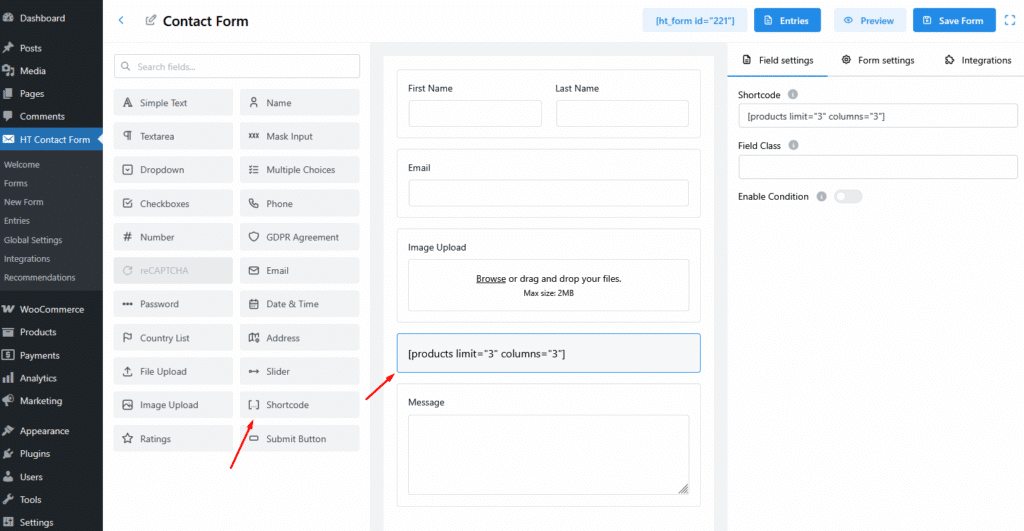
Step 2: Configure the Shortcode Settings #
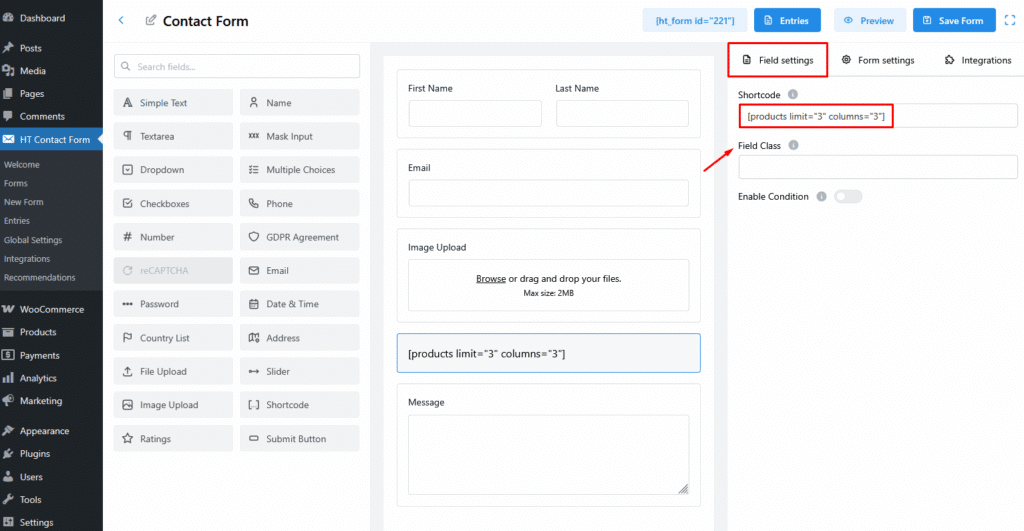
- Once the field is added, you can input the shortcode you want to display.
- Shortcode: Paste your shortcode here. Example: [products limit=”3″ columns=”3″]
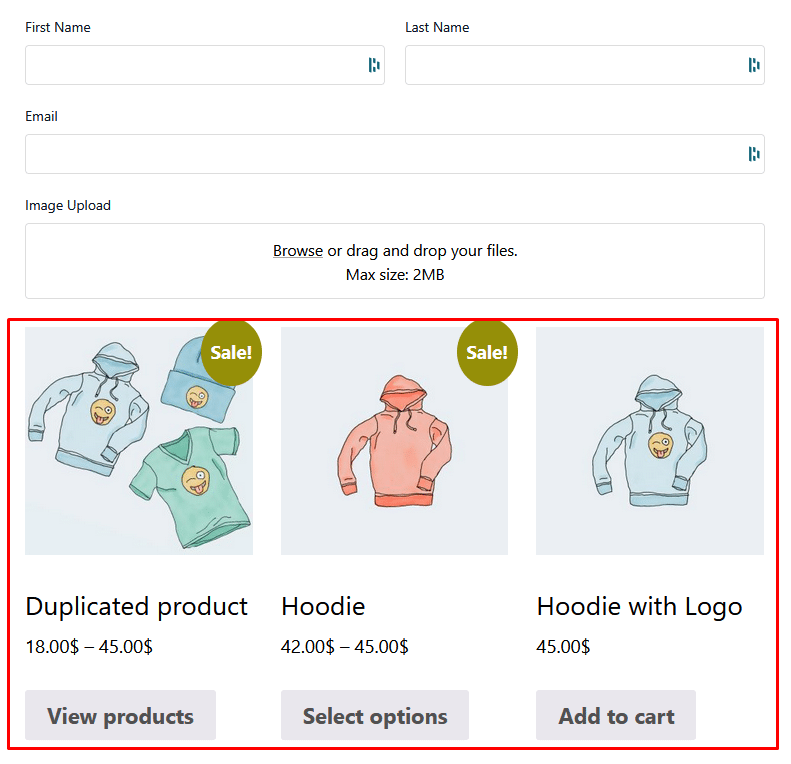
This shortcode will display 3 WooCommerce products in 3 columns. - Field Class: Optional. Add a custom CSS class to style the output.
Step 3: Apply Conditional Logic (Optional) #
You can choose to show the shortcode field only when specific conditions are met.
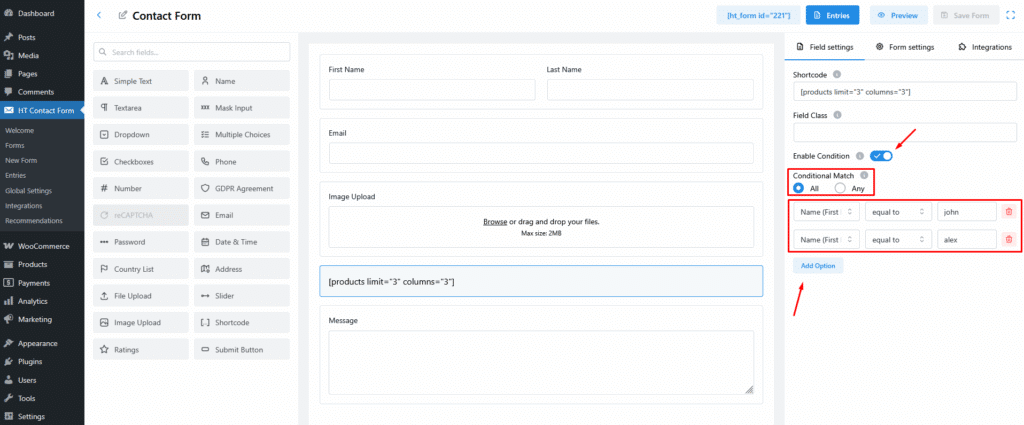
- Enable Condition: Toggle ON to activate conditional display.
- Conditional Match: Choose whether All or Any conditions must be met.
- Set rules using form field values (e.g., show shortcode only if the user's name is “john” or “alex”).
Preview #
Use Case Examples #
Here are some real-world use cases where the shortcode field shines:
- Display WooCommerce products inside a contact or quote form.
- Embed Elementor sections or reusable blocks.
- Show blog posts using
[recent-posts]shortcodes. - Add sliders, galleries, or forms from third-party plugins.


 OFF every WordPress plugin!