
There are many situations where specific plugins should not load on the WordPress admin (backend) interface. For example, when editing or creating a blog post using the default Gutenberg editor, you don’t need plugins like WooCommerce and WooCommerce-related plugins, marketing plugins, Elementor, or other page builders (such as Divi, Breakdance, or Beaver Builder). Loading these unnecessary plugins can slow down the admin experience and impact productivity.
With WP Plugin Manager, you can disable specific plugins on selected backend pages using flexible condition-based rules.
Step 1: Open Plugin Settings #
- Go to Plugin Manager → General.
- Find the plugin you want to disable in the backend (e.g., HT Easy GA4).
- Click the gear/settings icon beside the plugin name.
Step 2: Enable Backend Configuration #
- In the settings popup, switch to the Backend tab.
- Toggle the Enable switch to activate the configuration for the backend.
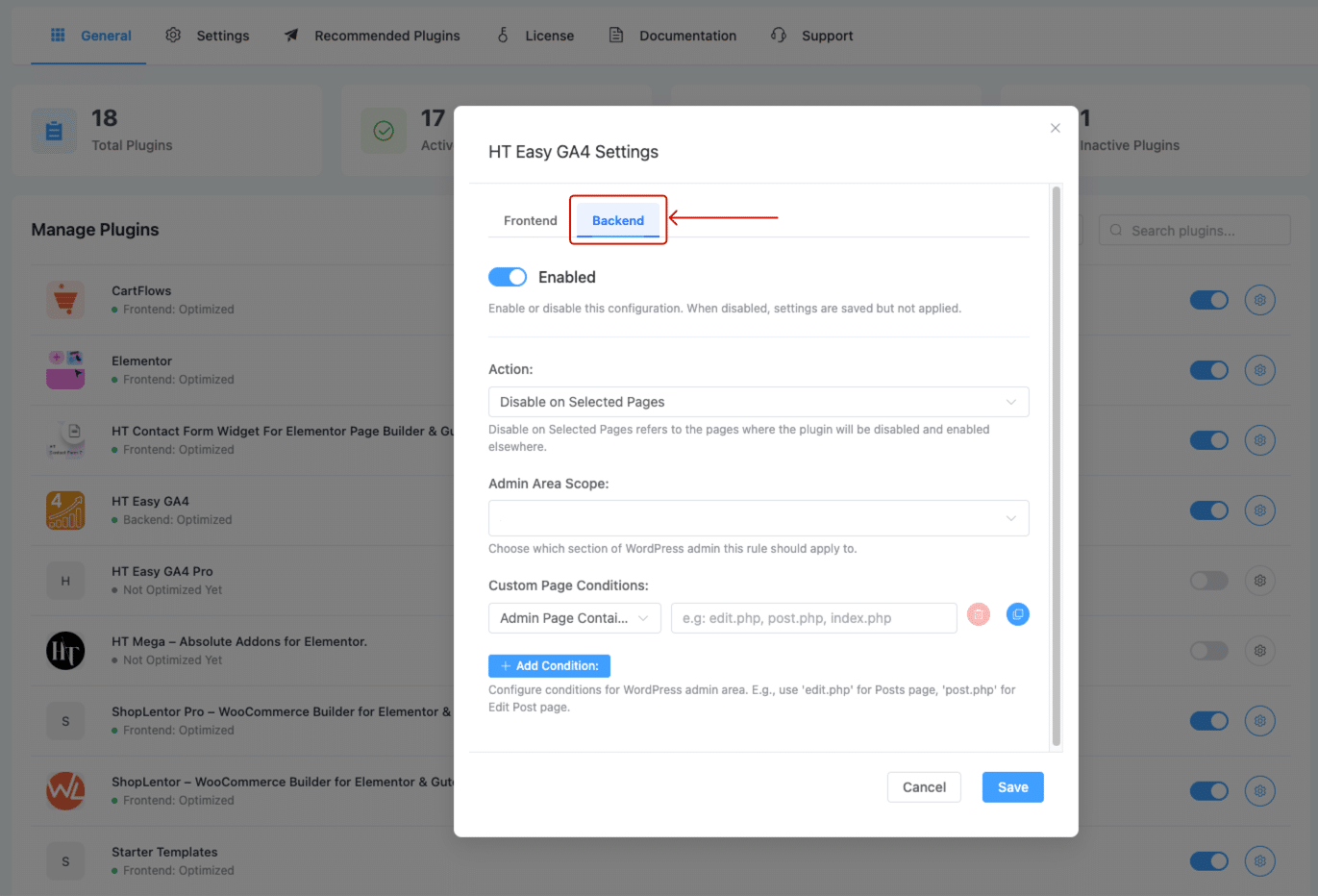
Step 3: Apply Backend Disable Rules #
After enabling backend control, you'll see multiple configuration fields:
Action: #
- Set to Disable on Selected Pages to define specific areas where the plugin should not load.
Admin Area Scope: #
- Choose which section of the WordPress admin this rule will apply to (can be left blank for general scope).
Select Admin Pages: #
- You can select predefined admin pages to target plugin behavior (optional).
Custom Page Conditions: #
This is where the real control comes in. You can define backend page-level rules using flexible conditions like:
- Admin Page Equals
- Admin Page Contains
- Admin Page Not Equals
- Screen ID Equals
- Hook Name Equals
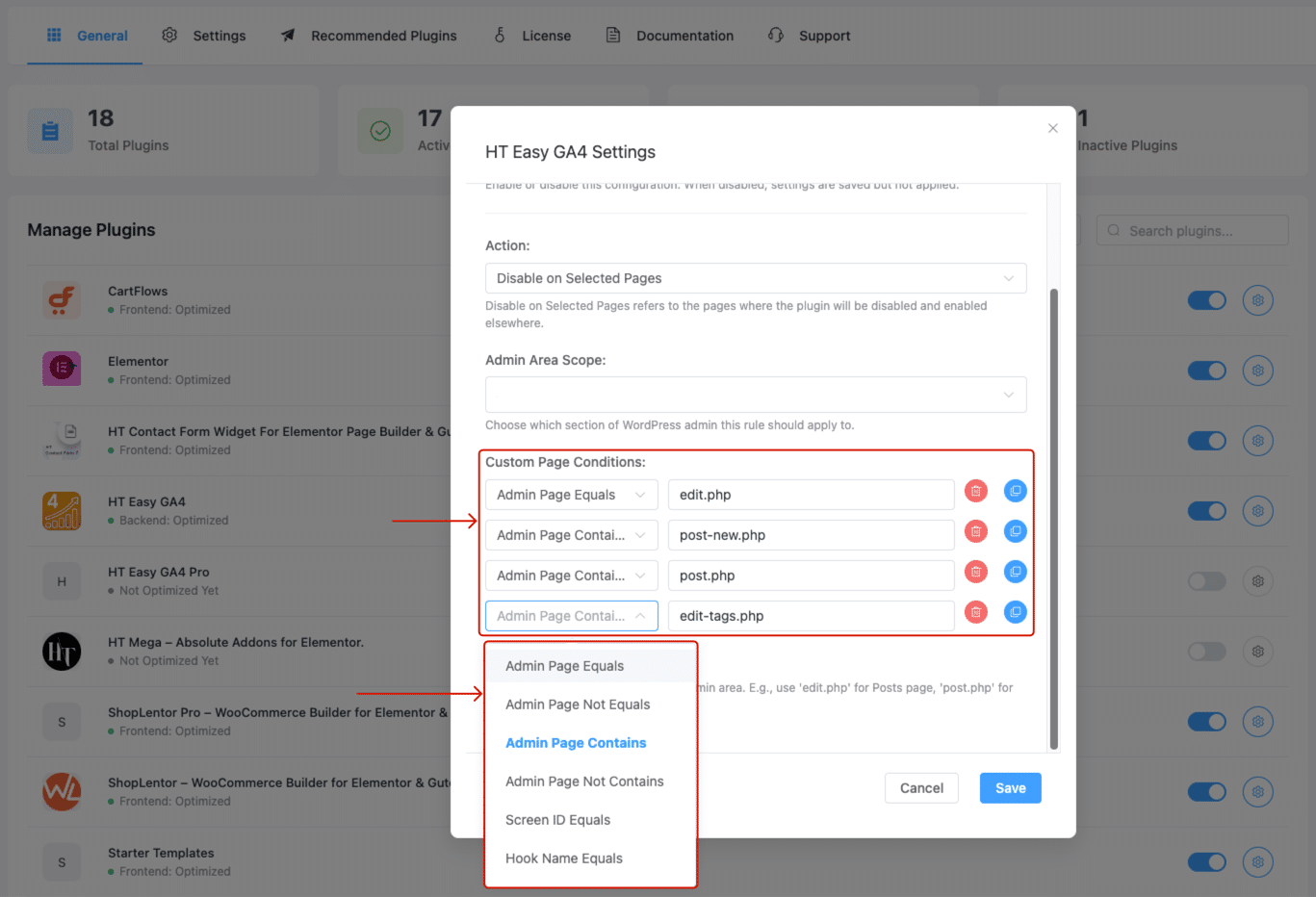
✅ Example setup:
Admin Page Equals:edit.phpAdmin Page Contains:post-new.php,post.php,edit-tags.php
Step 4: Save the Settings #
After applying the necessary conditions, click the Save & Enable button to activate the backend disable rules.
Summary #
By disabling unnecessary plugins in the WordPress backend, you can:
- Improve admin performance
- Avoid conflict between plugins
- Keep the editor UI cleaner and faster
Use WP Plugin Manager’s backend controls to fine-tune exactly where and when your plugins should load—or not.


 OFF every WordPress plugin!