
The Dashboard (General Tab) of WP Plugin Manager provides a quick overview and powerful tools to manage your installed plugins efficiently. This is the first place you'll land when you open the plugin and it offers key insights and control options.
Overview Metrics #
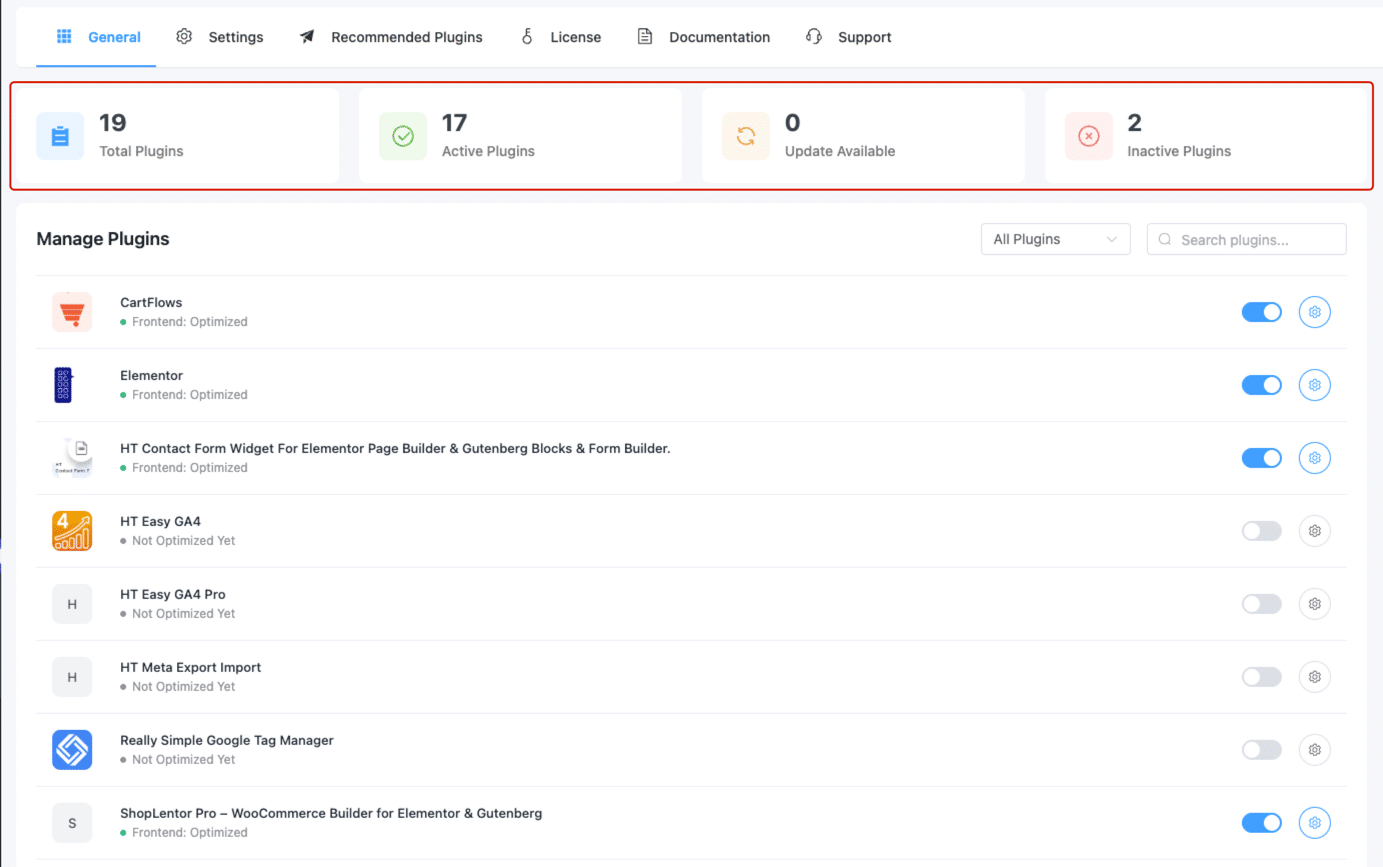
At the top of the General tab, you’ll see summary cards displaying:
- Total Plugins – Total number of installed plugins.
- Active Plugins – Plugins currently activated on your site.
- Update Available – Number of plugins with pending updates.
- Inactive Plugins – Plugins that are installed but not activated.
Manage Plugins Table #
Below the summary cards, you'll find the Manage Plugins section. This table lists all plugins (based on your selected filter), along with the ability to enable/disable and access individual plugin settings.
Table Features: #
- 🔍 Search Bar – Quickly find any plugin by name.
- 🔽 Filter Dropdown – Choose to view:
- All Plugins
- All Optimized
- Frontend Optimized
- Backend Optimized
- Not Optimized Yet
- 📄 Pagination – Navigate through plugin pages at the bottom of the table.
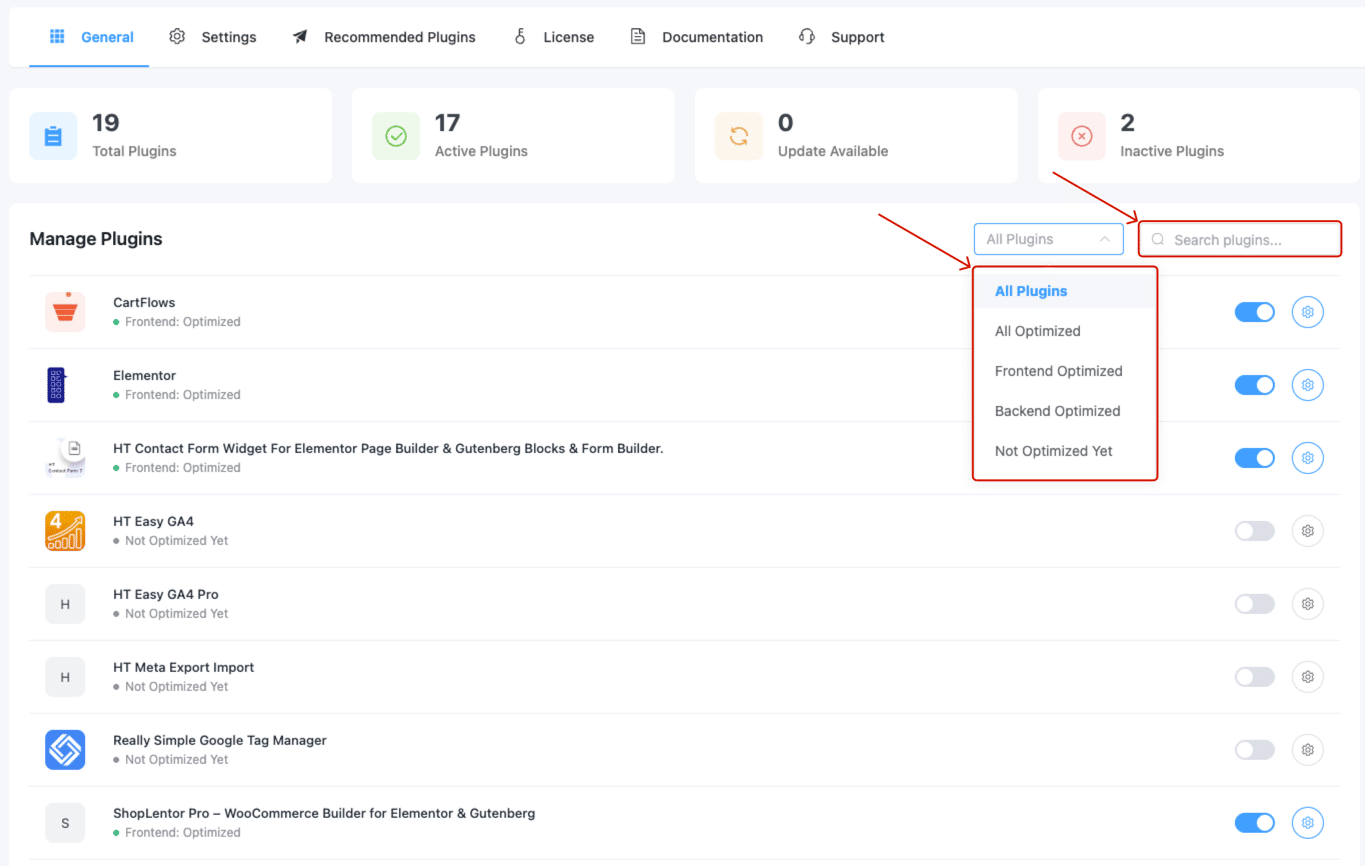
This layout makes it easy to manage a large number of plugins from a single interface.
Help Section #
At the bottom of the dashboard, you’ll find the Help Section with direct links to:
- 📖 Documentation – Step-by-step instructions.
- 🎥 Video Tutorial – Visual guide for quick learning.
- 🛟 Support – Contact support if you need assistance.
These resources ensure you're never stuck while using the plugin.
Summary #
The WP Plugin Manager Dashboard offers a clean, organized overview of your plugins, their status, and available actions. With real-time stats, filtering, and quick links to help, it simplifies plugin management for every WordPress user.


 OFF every WordPress plugin!