
How to Move Your Site From HubSpot to WordPress: Complete Migration Guide
Asif Reza
- Reader Disclosure Reader Disclosure: Some of the posts on our site may contain affiliate links. Clicking may earn us a commission at no extra cost to you. Thank you for your support! Read our Disclosure
Many businesses reach a point where HubSpot’s CMS begins to feel limiting. Whether it’s high costs, design restrictions, or lack of control, the platform may no longer serve your growing needs. If you’re facing these challenges, it might be time to move your site from HubSpot to WordPress.
WordPress offers unmatched freedom for content creators, marketers, and developers. From its massive plugin ecosystem to flexible design options, it’s built to scale with your business. Migrating might sound complex, but with the right plan, most users can complete the process in just 2-3 days.
This guide will walk you through preparing, migrating content, rebuilding forms, and preserving SEO rankings. You’ll learn how to replicate essential HubSpot features using WordPress plugins and keep your site fast, secure, and optimized post-migration.
Why Make the Switch: HubSpot vs WordPress
HubSpot’s Strengths & Limitations
HubSpot excels at marketing automation with built-in CRM and email tools. It offers a user-friendly interface perfect for marketing teams who need integrated lead tracking and campaign management. However, when it comes to website customization and scalability, limitations become apparent.
Many users find themselves restricted by:
- Limited theme options and design flexibility
- Fewer third-party integrations
- Higher costs as your site grows
- Rigid template structures
- Dependency on HubSpot’s ecosystem
WordPress Advantages
WordPress gives you complete control without platform lock-in. Unlike HubSpot, you can customize every aspect of your site’s design and functionality. With an open-source foundation, WordPress offers flexibility to grow and adapt as your needs change.
Key benefits include:
- Design Freedom: Choose from thousands of free and premium themes
- Plugin Ecosystem: Over 60,000 plugins for any functionality you need
- SEO Control: Advanced optimization tools like Yoast SEO and RankMath
- Cost Efficiency: No monthly platform fees, only hosting costs
- Ownership: Complete control over your data and website
Pre-Migration Planning
Content Audit & Inventory
Before starting your migration, catalog all content on your HubSpot site:
- Blog posts and website pages
- Images, documents, and media files
- Forms and call-to-actions
- Downloadable resources and gated content
- Custom landing pages
Use HubSpot’s analytics to identify your top-performing content and keywords. Document these pages to prioritize during migration and ensure proper SEO preservation.
Technical Preparation & Timeline Planning
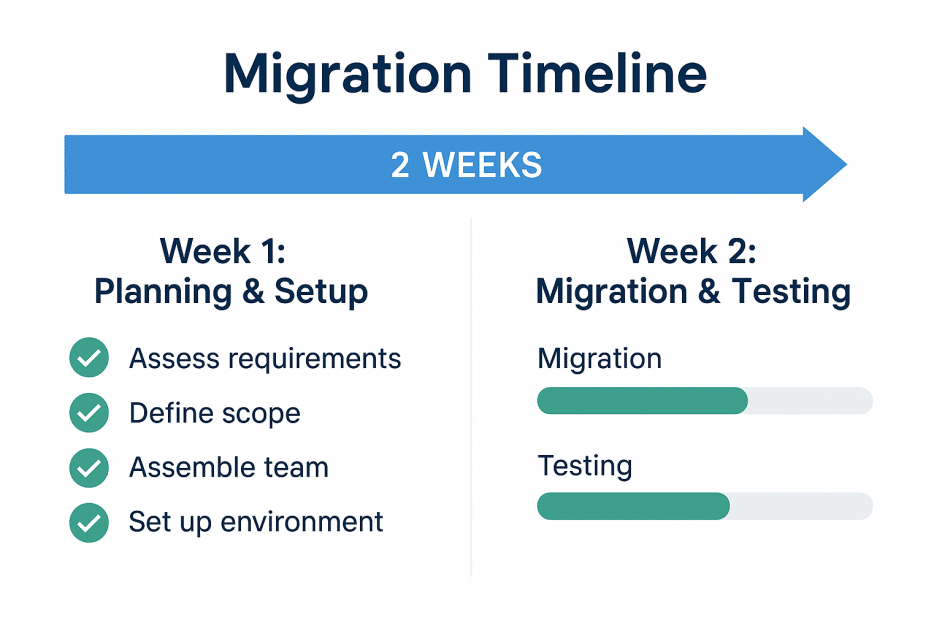
Week 1: Planning & Setup
- Choose WordPress hosting provider ($10-50/month)
- Purchase domain or prepare DNS transfer
- Set up staging environment
- Export HubSpot content and media
Week 2: Migration & Testing
- Import content to WordPress
- Configure theme and plugins
- Set up redirects and SEO
- Test all functionality
Budget Considerations:
- Hosting: $120-600/year
- Premium theme: $50-200 (optional)
- Essential plugins: $100-300/year
- Professional help: $500-2000 (optional)
Step-by-Step Migration Process: HubSpot to WordPress
1. Set Up Your WordPress Environment
Choose Your Hosting Provider
Select a WordPress-optimized host offering:
- Fast SSD storage and CDN
- SSL certificates included
- Daily backups
- 24/7 support
- Staging environments
Popular options include SiteGround, WP Engine, or Kinsta for managed hosting, or Bluehost for budget-friendly shared hosting.
Install and Configure WordPress
Most hosts offer one-click WordPress installation. After setup:
- Configure basic settings (site title, timezone, permalinks)
- Create a staging site for safe testing
- Install SSL certificate
- Set up basic security measures
2. Export and Prepare HubSpot Content
Export Process
HubSpot provides built-in export tools for most content:
- Go to Settings → Import & Export
- Export blog posts, pages, and files
- Download all media files separately
- Export forms and CTAs (may require manual recreation)
- Save important custom code snippets
Map Your URL Structure
Document your current HubSpot URLs to maintain SEO rankings:
- Create a spreadsheet with old URLs and planned new URLs
- Note any custom redirects already in place
- Plan WordPress permalink structure to match HubSpot when possible
3. Import Content and Rebuild Features
Import Content to WordPress
Use WordPress’s built-in importer or WP All Import plugin:
- Install the chosen import plugin
- Upload your HubSpot export file
- Map HubSpot fields to WordPress fields
- Run import and review results
- Clean up formatting issues and broken links
Migrate Media Files
- Upload all images and documents to WordPress Media Library
- Optimize images using plugins like Smush or ShortPixel
- Update any broken media links in posts and pages
- Organize files into logical folders
Rebuild Essential Features
- Forms: Replace HubSpot forms with WPForms or Gravity Forms
- Email Marketing: Connect to Mailchimp, ConvertKit, or keep HubSpot CRM
- Analytics: Install Google Analytics and Google Tag Manager
- SEO: Configure Yoast SEO or RankMath for optimization
4. Design and Theme Setup
Choose a responsive, fast-loading theme that matches your brand. Consider themes with:
- Built-in page builders (Elementor, Gutenberg compatibility)
- Multiple layout options
- Mobile optimization
- Fast loading speeds
- Regular updates and support
Customize colors, fonts, and layouts to match or improve upon your original HubSpot design.
5. Configure SEO and Redirects
Set Up 301 Redirects
Use the Redirection plugin or edit your .htaccess file:
- Create redirects from old HubSpot URLs to new WordPress URLs
- Test each redirect to ensure it works correctly
- Use tools like Screaming Frog to identify broken links
- Set up redirects for any changed URL structures
SEO Configuration
- Install and configure Yoast SEO or RankMath
- Import or recreate meta titles and descriptions
- Generate and submit XML sitemap to Google Search Console
- Set up Google Analytics and Search Console integration
- Optimize existing content for target keywords
Post-Migration Optimization
Testing Your Migration
Thoroughly test your new WordPress site:
Functionality Testing:
- Navigate through all pages and links
- Test all forms and submit buttons
- Verify mobile responsiveness
- Check loading speeds with PageSpeed Insights
SEO Testing:
- Confirm all redirects work properly
- Submit new sitemap to search engines
- Monitor Google Search Console for errors
- Test meta descriptions and title tags
Essential WordPress Plugins for Former HubSpot Users
SEO & Analytics:
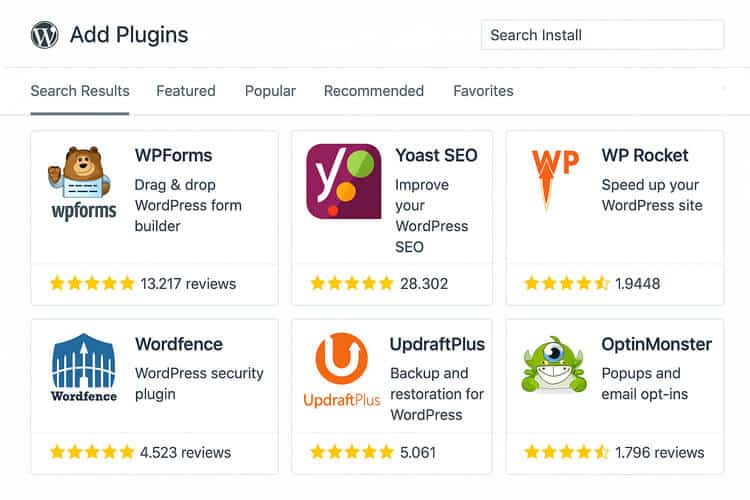
- Yoast SEO or RankMath for search optimization
- Google Analytics Dashboard for WP
- MonsterInsights for enhanced tracking
Forms & Lead Generation:
- WPForms or Gravity Forms for contact forms
- OptinMonster for pop-ups and lead capture
- HubSpot WordPress plugin (if keeping CRM)
Security & Performance:
- Wordfence or Sucuri for security
- WP Rocket or W3 Total Cache for speed
- UpdraftPlus for automated backups
Content Management:
- Yoast Duplicate Post for content copying
- WP Media Folder for file organization
- Redirection for URL management
Troubleshooting Common Issues
Technical Challenges
- Formatting Issues: Clean up imported HTML using search and replace tools
- Broken Links: Use Link Checker plugins to identify and fix broken internal links
- Media Problems: Re-upload missing images and update file paths
SEO Considerations
- Traffic Dips: Normal for 2-4 weeks; monitor Search Console for issues
- Missing Redirects: Add any forgotten redirects as issues are discovered
- Content Optimization: Re-optimize imported content for better keyword targeting
Maintaining HubSpot Integration
If you’re keeping HubSpot for CRM:
- Install the official HubSpot WordPress plugin
- Sync contact forms with your HubSpot account
- Continue using HubSpot’s email marketing tools
- Gradually transition to WordPress-based solutions when ready
Frequently Asked Questions
Will I lose SEO rankings when switching platforms?
You might see temporary fluctuations, but proper 301 redirects and SEO configuration help maintain rankings. Most sites recover within 2-4 weeks.
How long does migration typically take?
Small to medium sites can be migrated in 2-3 days. Larger, complex sites may take 1-2 weeks, depending on customization needs.
Can I still use HubSpot’s CRM after migrating?
Yes, install the HubSpot WordPress plugin to maintain CRM functionality, lead tracking, and marketing automation.
Do I need coding knowledge to migrate?
No coding required for basic migrations. Plugins handle most technical tasks, though complex customizations may benefit from developer assistance.
What’s the best way to handle forms after migration?
Use plugins like WPForms or Gravity Forms to recreate HubSpot forms. Both integrate well with CRM systems and email marketing tools.
Conclusion
Migrating from HubSpot to WordPress opens doors to unlimited customization, better cost control, and true website ownership. While the process requires careful planning, the benefits of WordPress’s flexibility and extensive ecosystem make it worthwhile for growing businesses.
Following this guide, you’ll maintain your SEO rankings, preserve essential functionality, and gain the freedom to scale your website without platform restrictions. Whether you handle the migration yourself or work with professionals, WordPress provides the foundation for long-term digital success.
Ready to take control of your website? Start your HubSpot to WordPress migration today and unlock your site’s full potential.







