
This guide walks you through connecting Insightly CRM with HT Contact Form. You’ll learn how to generate your Insightly API Key and URL, enable the integration in your WordPress dashboard, and map form fields for automated lead capture.
Step 1: Log in to Insightly #
- Visit https://www.insightly.com/
- Click Login (top right corner) and enter your credentials.
Step 2: Get Your API Key #
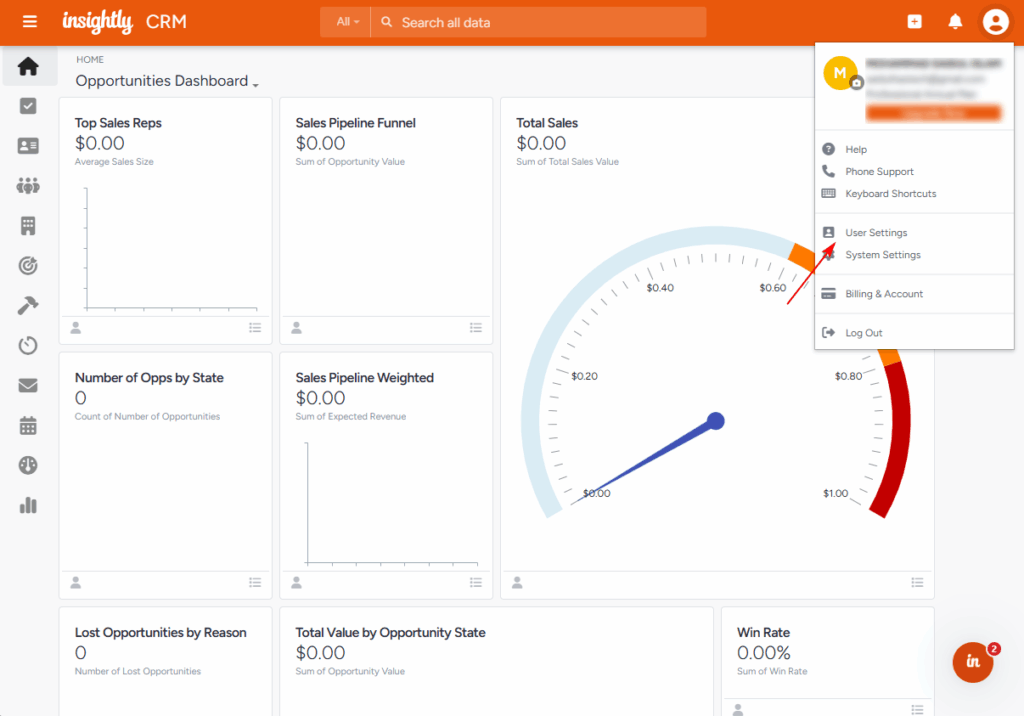
- After logging in, click your profile icon in the top-right corner.
- From the dropdown, click User Settings.
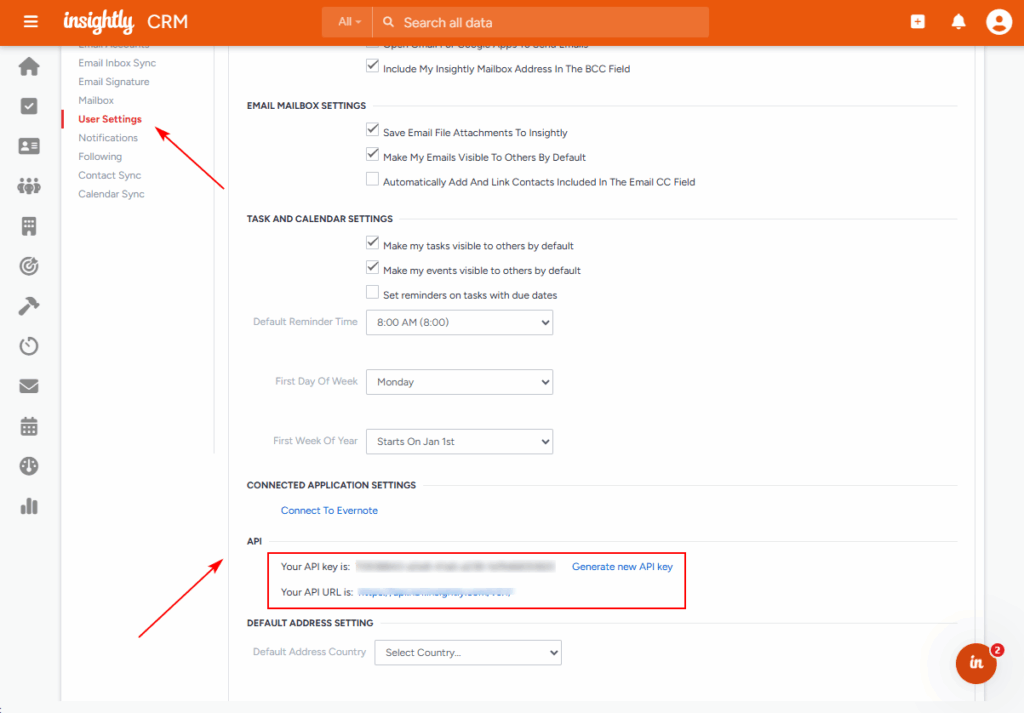
- Scroll down to the API section.
- You’ll find your API Key there. Click Copy.
Step 3: Get Your API URL #
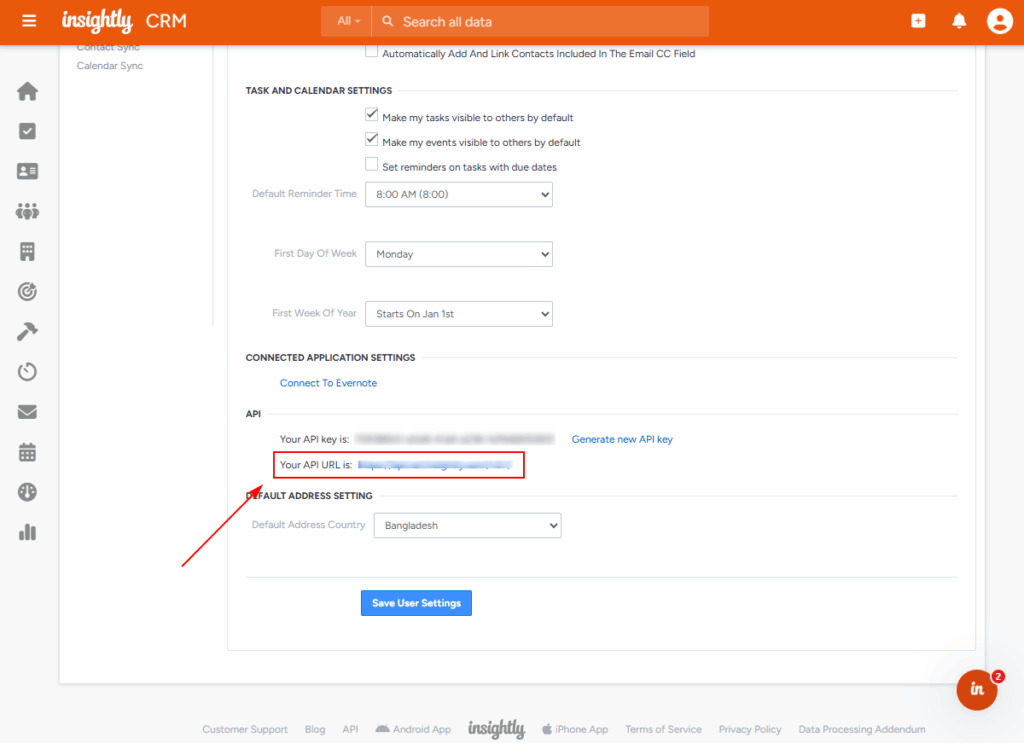
- Your API URL is based on your Insightly account region.
Format:https://{your-region}.insightly.comExample:https://api.insightly.com - If you're unsure of your region, check the browser URL after logging in or refer to Insightly API documentation for clarification.
Step 4: Open HT Contact Form in WordPress #
- Go to your WordPress Dashboard.
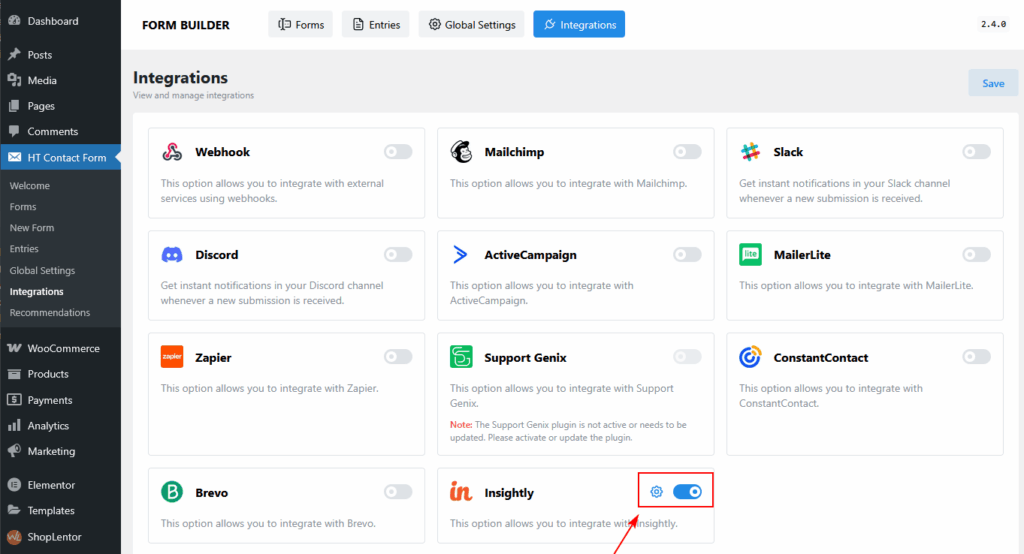
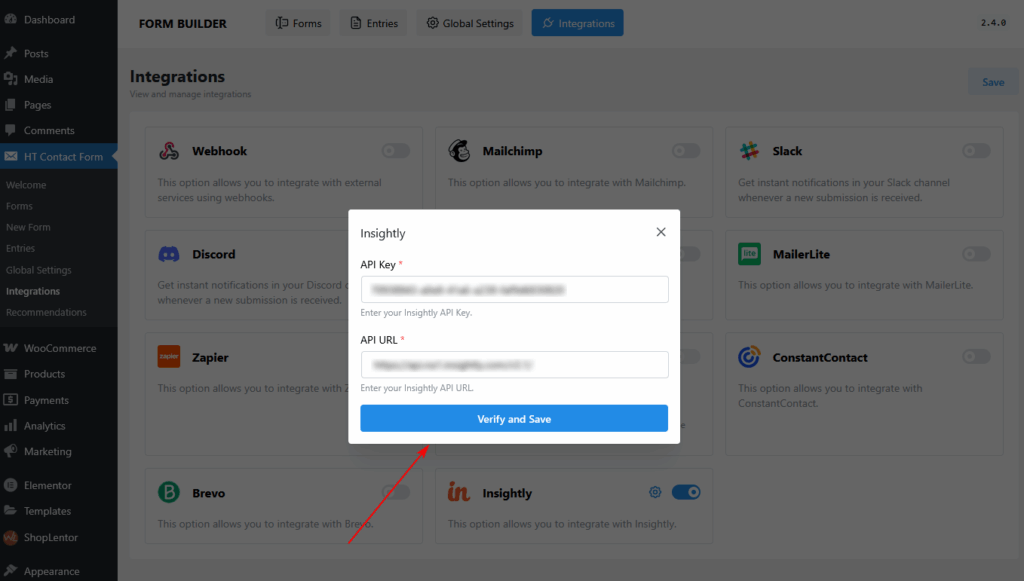
- Navigate to: HT Contact Form → Global Settings → Integrations
- Find the Insightly integration card and toggle it ON.
- Click the gear icon (⚙️) to open the configuration modal.
Step 5: Configure the Insightly Integration #
In the popup:
- Paste your API Key into the API Key field.
- Paste your API URL into the API URL field.
- Click Verify and Save.
If the API key and URL are valid, you’ll see a success message.
Step 6: Map HT Contact Form Fields to Insightly #
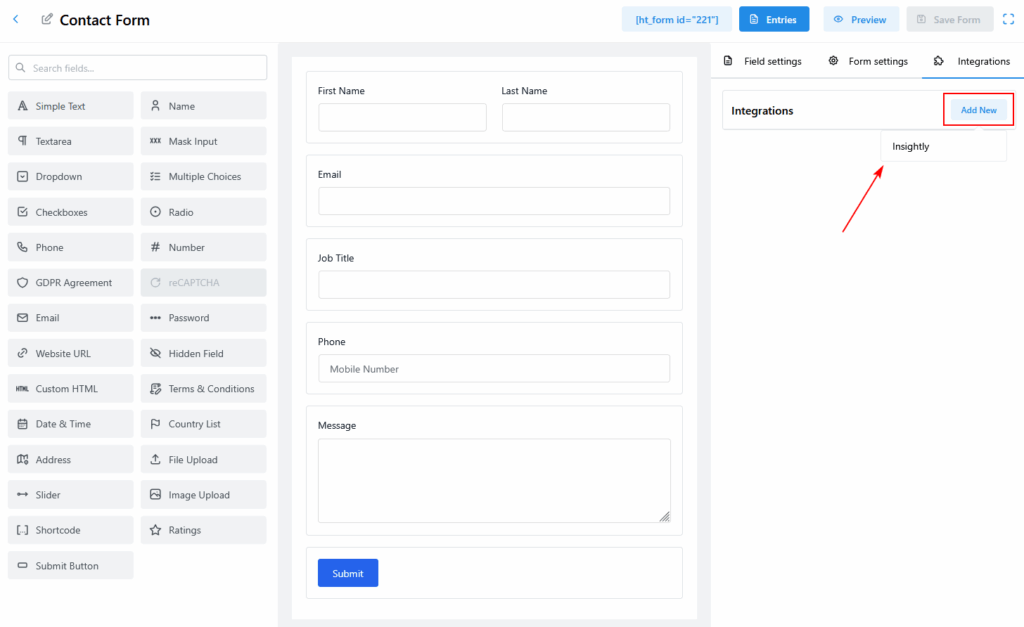
- Go to HT Contact Form → Forms and open an existing form or create a new one.
- Click the Integrations tab in the form editor.
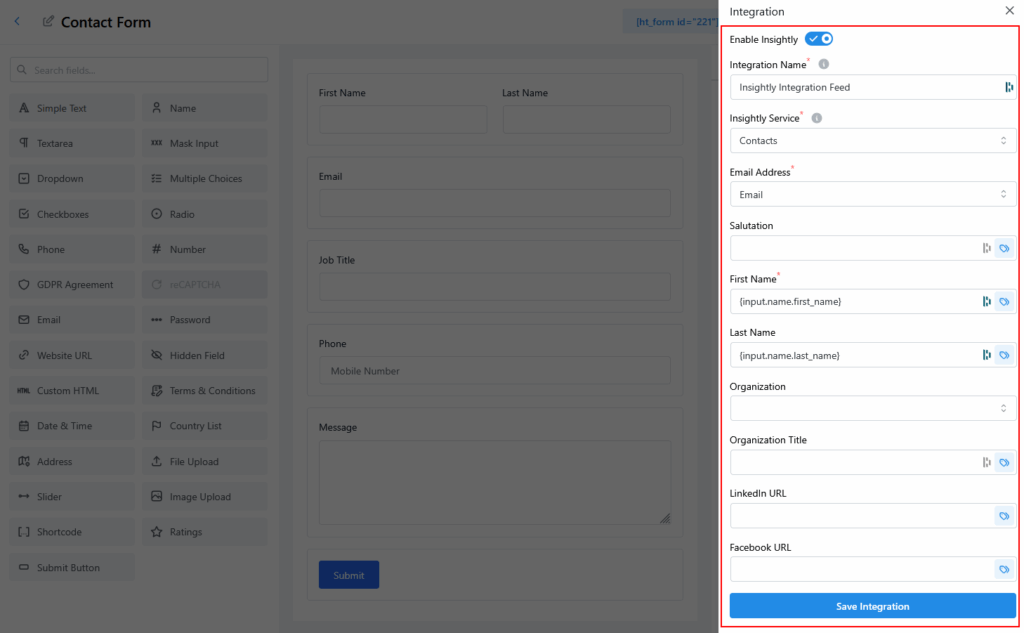
- Enable the Insightly integration.
- Provide an Integration Name (e.g., “Contacts”,”Lead Capture”).
- Map form input fields (Name, Email, etc.) to corresponding Insightly fields.
- Click Save Integration.
🎯 You're All Set! #
Now every time someone submits your form, their information will automatically be sent to Insightly CRM.


 OFF every WordPress plugin!