
HT Slider categories help you organize your sliders efficiently by grouping them based on specific categories. This is especially useful for managing multiple sliders on a website. For example, if a client’s website has three different sliders, you can assign each slider to a separate category, making it easier to manage and use them.
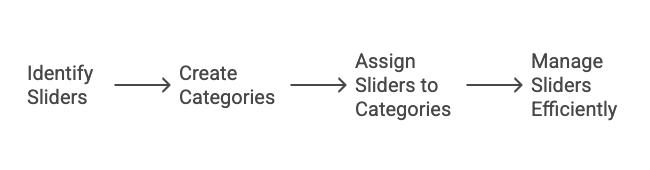
Step 1: Create a Slider Category #
- Go to your WordPress Dashboard > HT Slider Pro > Categories.
- Enter a category name (e.g., “Homepage Sliders”, “Product Sliders”, or “Event Sliders”).
- Click on Add New Category to create the category.
Step 2: Assign a Slider to a Category #
- Navigate to HT Slider Pro > All Sliders.
- Select the slider you want to assign to a category.
- Quick Edit the slider and find the Slider Categories option in the settings.
- Check the appropriate category from the menu.
- Update the changes.
Using Categories in Elementor Widgets #
When you use the HT: Advanced Slider or HT: Slider Elementor widget:
- Go to the Content Source option and set it to HT Slider.
- Under Post Options, you will see the following:
- Slider Show by Category or ID: Choose to display sliders based on their category or ID.
- Category Selection: Select your desired slider category from the available options.
- Slider Limit: Control the number of sliders to display by setting a limit.
Benefits of Using HT Slider Categories #
- Improved Organization 🔄 – Keep your sliders neatly grouped, making it easier to manage multiple sliders.
- Time-Saving ⏱️ – Quickly find and edit sliders by filtering them through categories.
- Enhanced Flexibility 🌐 – Display specific sliders on different pages by using category-based filtering.
- User-Friendly Management 😊 – Simplify the process of editing and updating sliders with clear category assignments.
- Customizable Display Options 🎨 – Easily control which sliders appear on your website based on categories or IDs.
Frequently Asked Questions (FAQ) #
Can I assign a slider to multiple categories?
No, each slider can be assigned to only one category at a time.
How do I delete a category?
Go to HT Slider Pro > Categories, select the category you want to delete, and click Delete. Make sure no sliders are assigned to it.
What happens if I don’t assign a slider to any category?
Sliders without a category will still work, but organizing them becomes harder, especially if you have multiple sliders.
By following these steps, you can efficiently manage your HT Slider categories and create a well-organized slider system for your website! 🌟


 OFF every WordPress plugin!