
The Pagination Title feature in the HT Scroll Navigation Slider displays slide titles when users hover over pagination dots or when slides are active. This enhances user experience by providing clear navigation hints and improves content accessibility.
Benefits of Using Pagination Titles 🚀 #
- Enhanced User Experience 🎯 – Users instantly understand slide content before navigating
- Improved Accessibility ♿ – Better navigation for users with disabilities
- Professional Appearance 💼 – Adds sophistication to your sliders
- Reduced Bounce Rate 📈 – Clear navigation encourages exploration
- Mobile-Friendly 📱 – Automatically adapts to smaller screens with text truncation
- Customizable Design 🎨 – Match your brand colors and typography
- Multiple Trigger Options 🖱️ – Choose how and when titles appear
Step-by-Step Guide to Enable Pagination Titles #
Step 1: Enable Pagination Title Feature #
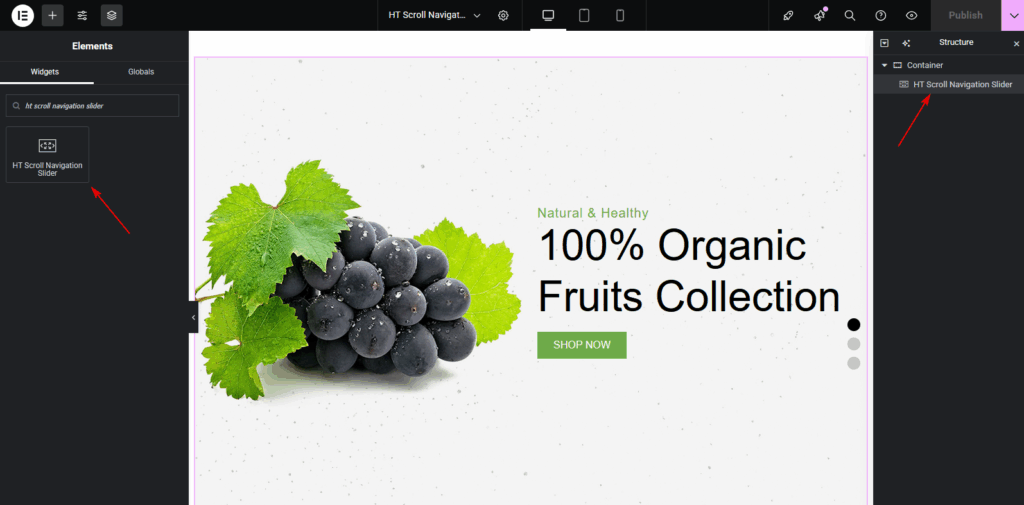
- Open the page with the HT Scroll Navigation Slider in Edit with Elementor mode.
- Select the HT Scroll Navigation Slider widget.
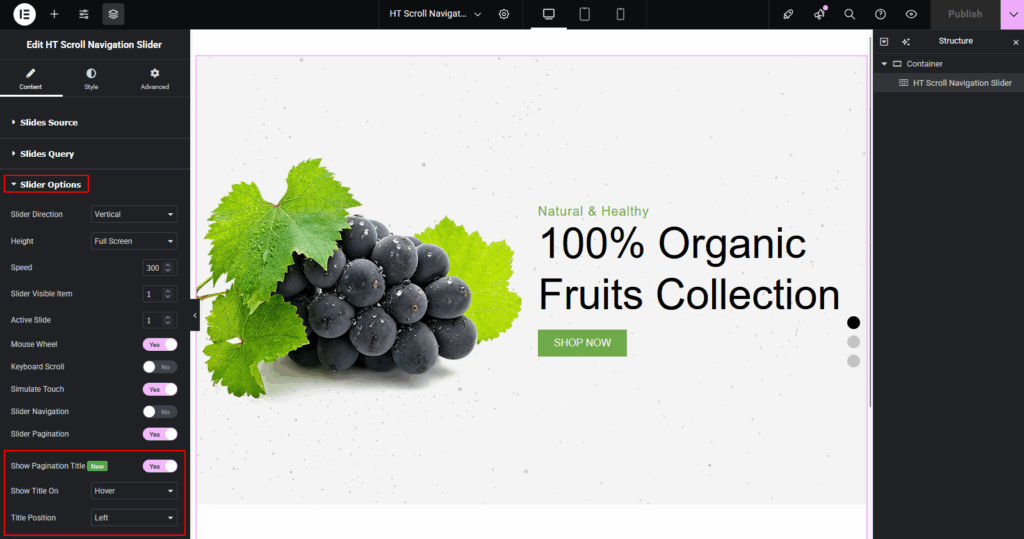
- Navigate to the Slider Options tab.
- Locate the Show Pagination Title setting (marked with a NEW badge) and enable it.
Step 2: Configure Pagination Title Settings #
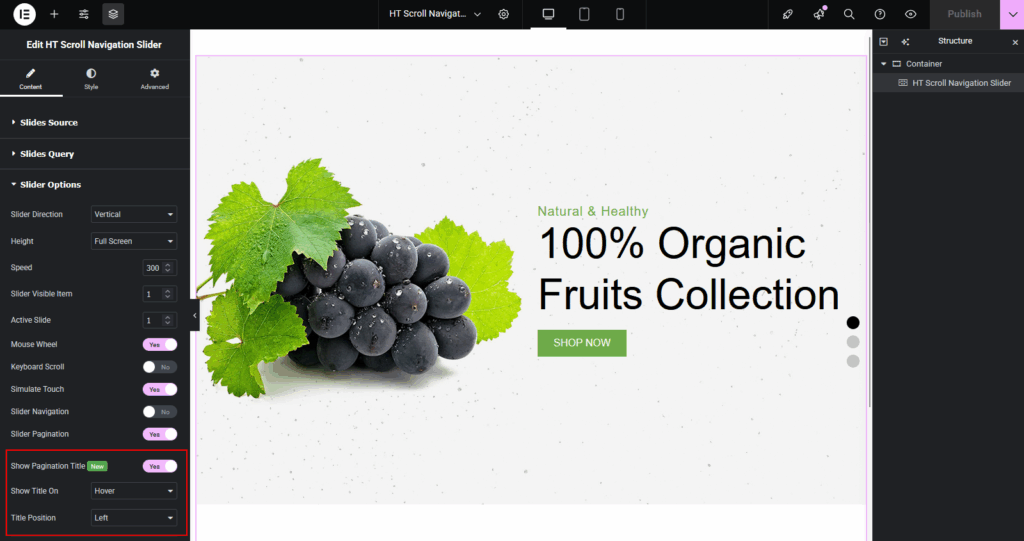
After enabling the feature, you'll see additional configuration options:
Show Title On:
- Hover – Titles appear only when hovering over pagination dots
- Active – Titles show only for the currently active slide
- Both Hover & Active – Combines both behaviors for maximum visibility
- Always Visible – Titles are permanently displayed
Title Position:
- Top – Displays titles above pagination dots
- Bottom – Shows titles below pagination dots
- Left – Positions titles to the left of dots
- Right – Places titles to the right of dots
Step 3: Add Custom Slide Titles #
To add personalized titles for each slide:
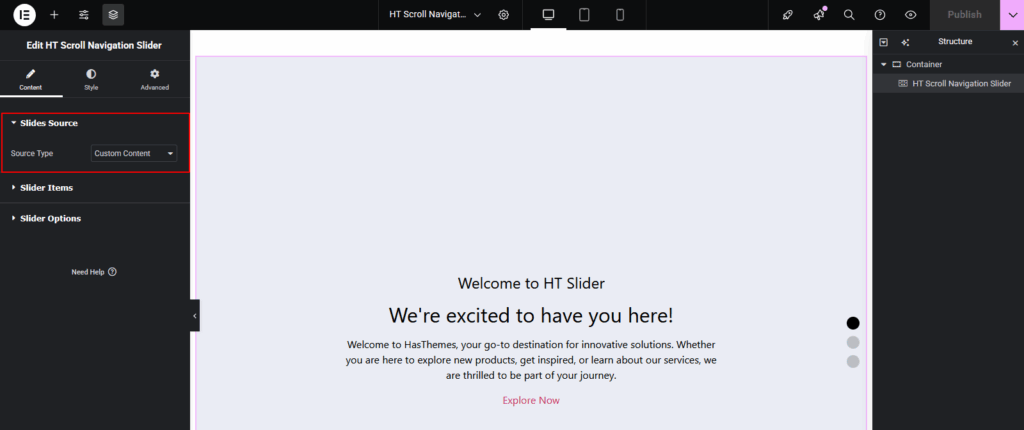
- Navigate to slides source section.
- Select Source Type: custom content.
- Go to the Slider Items section.
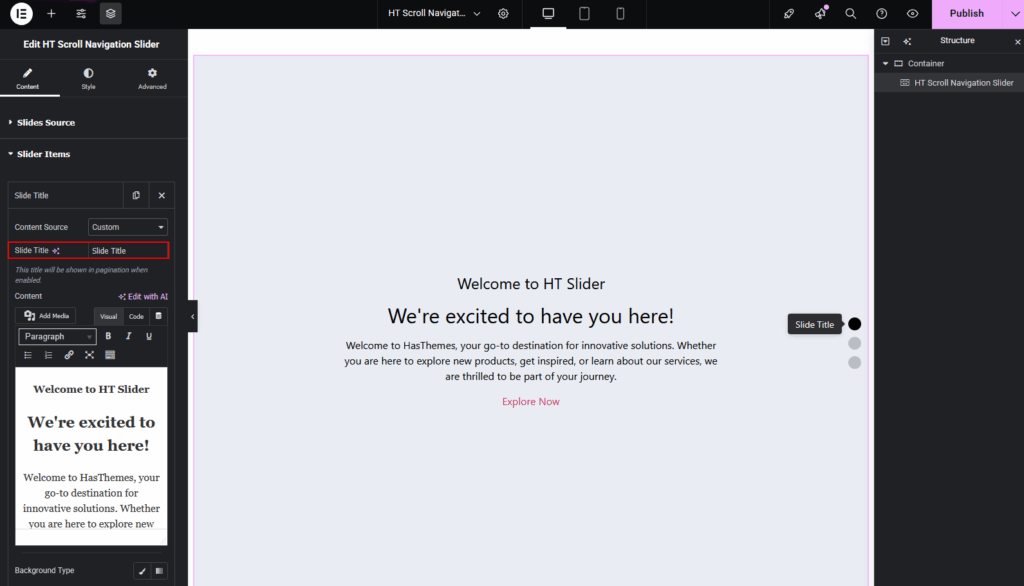
- For each slide item, you'll find a Slide Title field.
- Enter a descriptive title for each slide (e.g., “Welcome Section”, “Our Services”, “Contact Us”).
- If no custom title is provided, the system will automatically extract text from the slide content.
Step 4: Style Your Pagination Titles #
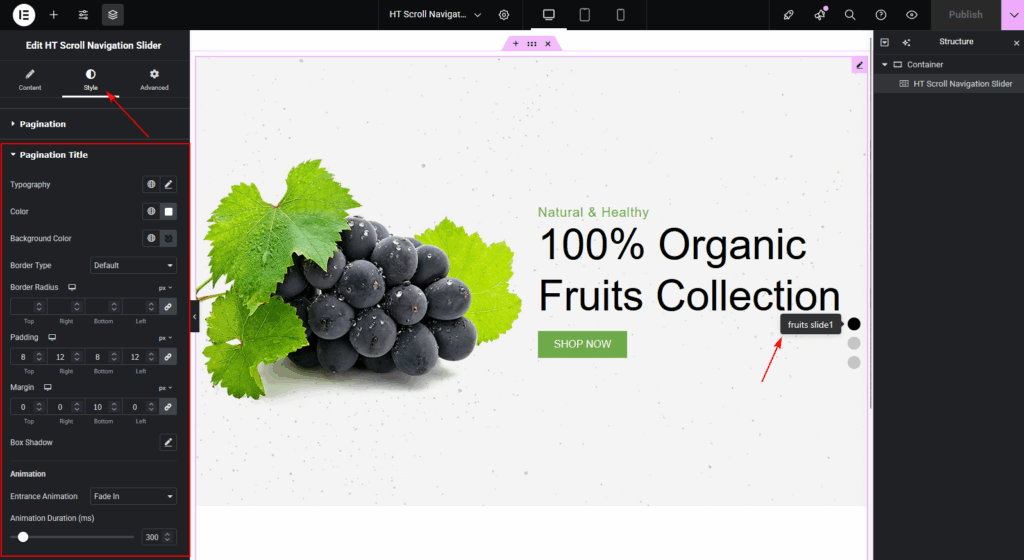
Navigate to the Style tab and find the new Pagination Title section:
Typography Options:
- Font family, size, weight, and style
- Text transform and letter spacing
- Line height customization
Color Settings:
- Text color for optimal readability
- Background color with transparency support
- Border colors and styles
Spacing & Positioning:
- Padding for internal spacing
- Margins for external positioning
- Border radius for rounded corners
Visual Effects:
- Box shadow for depth
- Border styling options
- Hover state customizations
Step 5: Configure Animations (Optional) #
Add engaging entrance animations to your pagination titles:
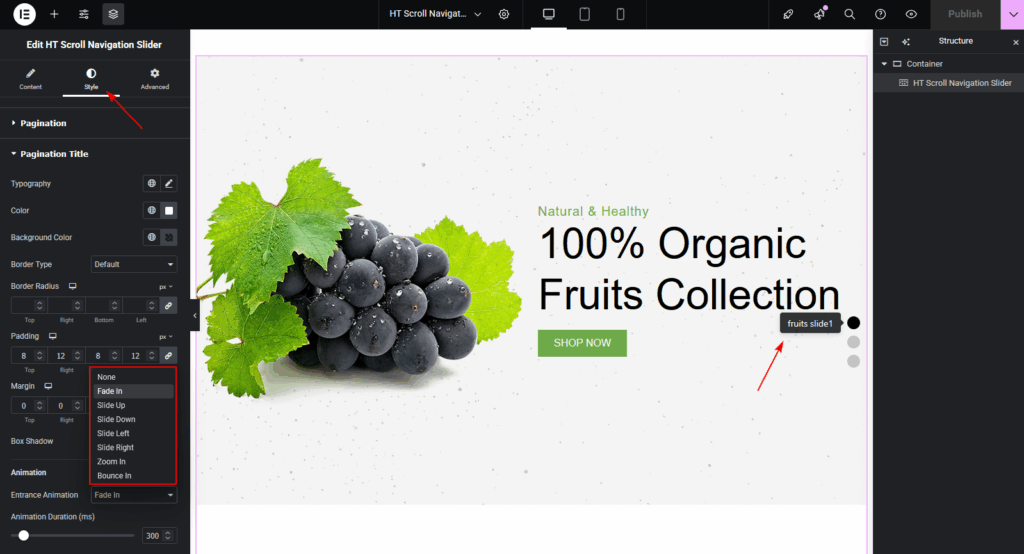
Animation Types:
- Fade In – Smooth opacity transition (professional)
- Slide Up – Slides from bottom to position
- Slide Down – Slides from top to position
- Slide Left – Enters from the right side
- Slide Right – Enters from the left side
- Zoom In – Scales from small to normal size
- Bounce In – Playful bouncing entrance effect
Animation Duration:
- Adjust timing from 100ms to 2000ms
- Default: 300ms for optimal user experience


 OFF every WordPress plugin!